Why can't your scraper see content inside an iframe
November 01, 2026
web scraping troubleshooting, data quality, browser automation, CSS selectors, Iframe scraping
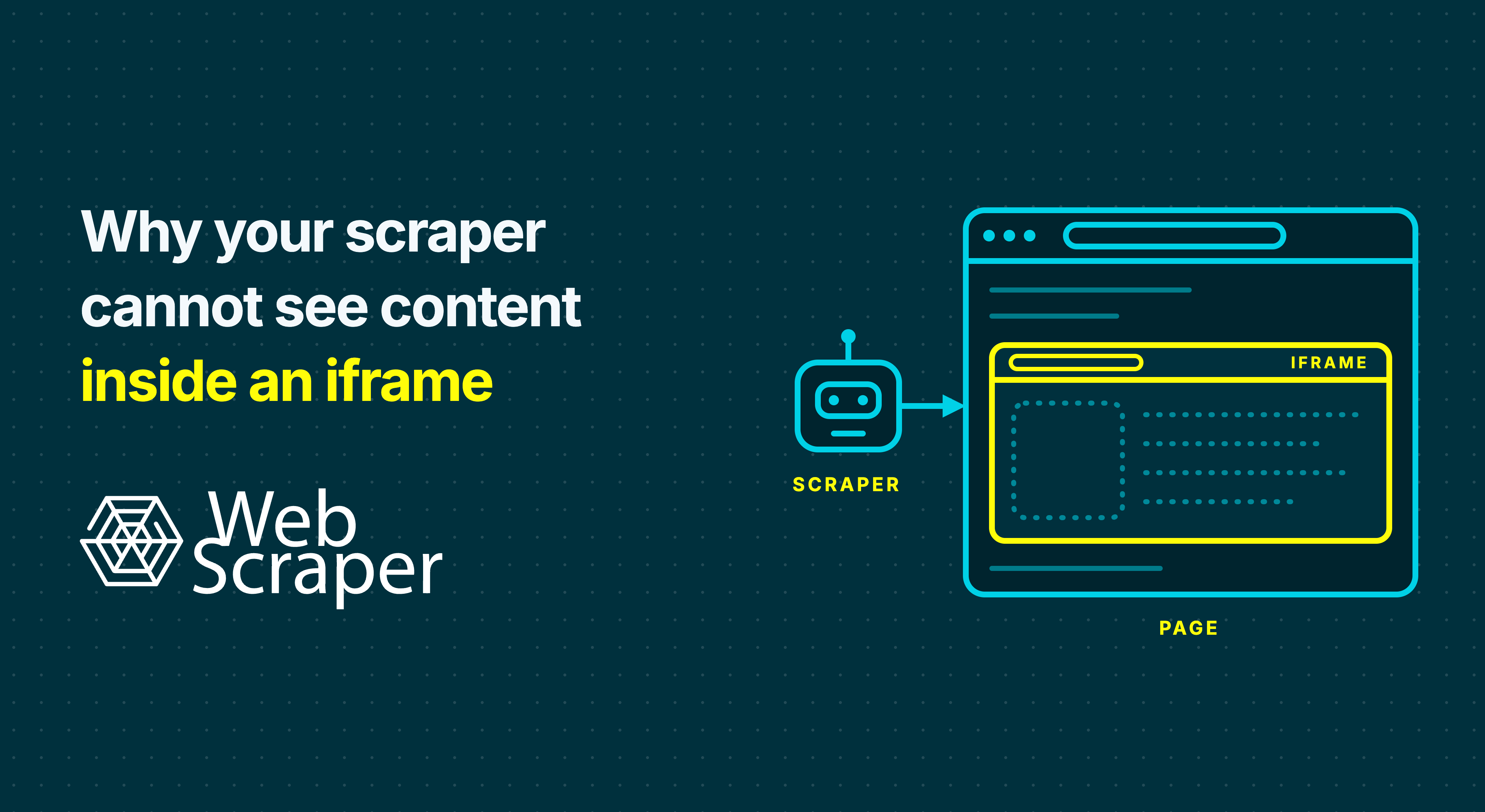
An iframe displays another document inside the page you are viewing. Your browser can show its content while a scraper searching only the surrounding document finds nothing. To scrape iframe content, identify the frame, check whether its data is ready and accessible, and choose an extraction route your tool supports.
The visible page contains more than one document
Consider a supplier catalogue where the product name appears on the main page and a stock table comes from an embedded widget. The parent document might contain:
<h1>Replacement filter</h1>
<iframe id="stock-frame" src="/stock?sku=F-104"></iframe>
The child document contains the stock table:
<table class="stock-table" data-sku="F-104">
  <tr><td>Warehouse A</td><td>18 available</td></tr>
</table>
An iframe embeds a separate document. A native CSS selector such as iframe .stock-table does not cross into that document, and fetching only the parent HTML does not automatically retrieve the table.
Confirm which frame contains the missing value
Start with one failing URL and a distinctive value, such as SKU F-104 and its warehouse stock. Inspect the value in developer tools. Chrome's Application > Frames view shows the frame hierarchy, current document URL, origin and owner element. Record the parent and child URLs, including any navigation after the initial src.
In the Console, use the JavaScript Context dropdown to switch from top to the child document, then run document.querySelector('.stock-table'). A match only inside the child points to a context problem. DevTools access does not establish your scraper's access.
In Web Scraper, compare these selectors using Element Preview:
iframe#stock-frame .stock-table
iframe#stock-frame:iframe .stock-table
For the example above, the first selector stays in the parent document, so Element Preview has no stock table to highlight.
The second selector enters the iframe document. Element Preview can then highlight the stock table if the document is accessible and the table has loaded. Check Data Preview next to see the extracted values. The sitemap preview documentation distinguishes matching elements from extracting their data.
For nested frames, follow the document hierarchy one boundary at a time. Use suitable IDs, names or URLs to identify the target; the first iframe may belong to an unrelated widget.
Separate context, loading and access problems
| What you find | Likely problem | Next check | How it looks in Web Scraper |
|---|---|---|---|
| The value exists inside the frame, but parent selectors find nothing | Wrong document context | Frame selection and the selector inside it | Element Preview highlights no target table when the selector remains in the parent document. |
| The frame exists, but records appear later | Loading or interaction | Child data requests and the action that reveals records | The expected stock values are absent from Data Preview if extraction runs before the child records appear. |
| Parent JavaScript cannot read the visible child document | Origin or sandbox restriction | Origins, sandbox attributes and tool support | A missing match alone does not identify an access restriction; compare the iframe element and its inner selector separately. |
| The child shows a login, challenge or error | Unexpected response or missing state | Current child URL, response and session | The expected stock values are absent; inspect the child document to identify which response arrived. |
| Some child records appear, but others are missing | Incomplete collection | Pagination, scrolling and filters inside the frame | Only some expected warehouse rows appear in Data Preview or the export. |
| The source URL works separately but shows different records | Embedded state differs | Entity ID, filters, locale and parent-supplied configuration | Data Preview shows different SKU or stock values in the parent-page and direct-URL sitemaps. |
A frame can exist before its application has populated the records. Check the intended SKU and completed stock values, or a genuine empty-results state. Playwright's navigation documentation explains why the page's load event alone does not establish readiness.
If the child received an error or challenge, use the 200 OK but no data diagnostic guide. A longer delay will not repair a failed request.
How origin restrictions affect iframe scraping
An origin combines the scheme, host and effective port. A different subdomain is a different origin. The same-origin policy restricts parent-page scripts from reading another origin's document; contentDocument returns null for a cross-origin document. Sandboxing can impose further restrictions. CORS controls access to cross-origin responses through mechanisms such as Fetch and XHR. It does not grant parent-page scripts access to another origin's iframe DOM.
Browser automation has a different access path: WebDriver supports switching into child browsing contexts across origins. That does not establish which frames Web Scraper supports. Its own documented restrictions and tested behaviour must guide the choice of extension or Cloud driver.
For Web Scraper, separate the documented extraction method from the question of whether the particular frame is accessible:
| Environment | Documented behaviour | What to verify for an iframe |
|---|---|---|
| Browser extension | Provides :iframe selector syntax for accessible iframe documents | The outer selector finds the intended iframe, and the inner selector finds its target. |
| Cloud with the Fast driver | Extracts returned HTML without running page JavaScript | The required data is available without JavaScript or browser interaction; compare actual output before using this route. |
| Cloud with the FullJS driver | Executes page JavaScript and supports interaction workflows | The child reaches the required state and its content is accessible to the selector. |
FullJS addresses JavaScript-dependent loading. It does not guarantee access to every cross-origin, sandboxed or script-populated frame. The iframe selector documentation explains the access limitations, while the driver documentation explains the execution differences.
Choose how to scrape iframe content
Enter the frame through supported tooling
const stock = page.frameLocator('iframe#stock-frame');
const table = stock.locator('.stock-table');
await table.waitFor({ state: 'visible' });
const text = await table.innerText();
This Playwright frame example assumes an existing page on the parent URL and checks table visibility; product identity and complete stock values still need validation.
Test the frame's current URL independently
Open the current HTTP or HTTPS frame URL separately and compare its SKU, filters and stock values with the embedded version. Preserve meaningful query parameters and repeat the check in a fresh session and on another product.
In Web Scraper, use the frame URL as the sitemap start URL when it independently reproduces the required product and stock data. If the site exposes a usable link to that document, reach it with a Link selector. Test :iframe on the parent page when parent-supplied configuration or the embedded session is necessary. A temporary address needs a repeatable way to obtain a current URL before either direct route is reliable.
The parent can supply configuration through postMessage(). Some frames also have no reusable HTTP source URL: srcdoc supplies inline HTML and overrides src, while an about:blank frame can receive content through scripts.
If neither route works, check whether the provider offers a suitable supported API or export. A JSON request in developer tools is not automatically a public API.
Apply the diagnosis in Web Scraper
For the F-104 example, Web Scraper's iframe selector is:
iframe#stock-frame:iframe .stock-tableThe :iframe part is Web Scraper syntax, not a native CSS pseudo-class for document.querySelector(). The iframe selector documentation covers configuration and nested boundaries, and warns that cross-origin restrictions or site security controls can prevent access.
For nested iframes, build the selector from the outer document towards the target and check each boundary with Element Preview. If the outer frame is not matched, the inner selector has no useful starting context.
For a lazy-loaded frame, first check what makes the target appear. Reproduce a required interaction before extraction; use an Element click selector when the page actually requires a click. Add a delay only when the content needs more time to load. A delay cannot replace the action that starts loading.
After the individual selectors match, check the complete workflow:
- Use Data Preview to inspect the extracted values, not just the highlighted element.
- Run a small local scrape and inspect its export.
- Run a limited Cloud job with the same representative URLs and compare the required records and values before scheduling a larger collection.
Keep embedded data attached to the correct record
Retain the parent URL or SKU alongside the extracted stock data. If parent and child data are collected separately, keep a join key and the source URL for each stage.
In the illustrative example, the record relationship is product F-104, warehouse Warehouse A and stock value 18 available. Check that these values stay together in the exported data and that each record can be traced back to the correct product page.
Use sitemap preview and validation to check that every row belongs to F-104 and that all required warehouses are present. Distinguish a genuine out-of-stock result from a missing table, failed frame or blank extraction. Inspect the actual export and repeat the run outside the browser session used for setup.
Start by testing the target frame with the Web Scraper browser extension. Once the sitemap consistently produces the required records, use Web Scraper Cloud to automate collection.