Select elements on a page
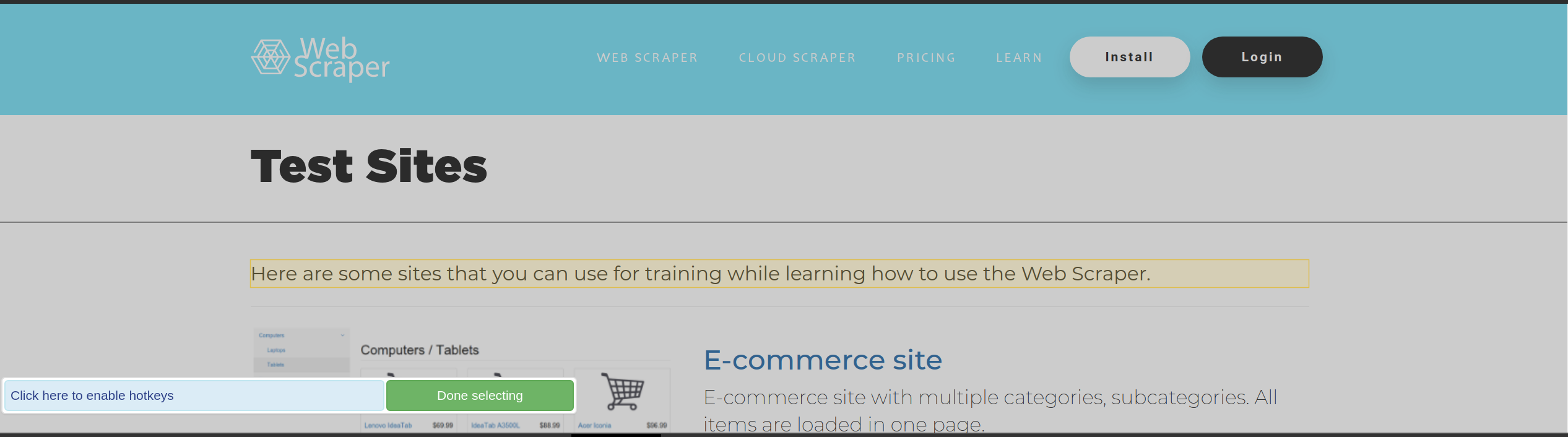
Use the selection tool
- Create or edit a selector.
- Select
Select. - Move the pointer over the target element.
- Select the target element.
- Select additional elements when the selector should match more than one
element. Hold
Shiftto select elements that do not share the same CSS selector. - Review Element Preview before saving.
Inspect the selected element
While the selection tool is active, hovering over or selecting an element shows its HTML in the selection overlay. This preview is available regardless of the selector type you are creating.
Use the preview to inspect the element tag, classes and HTML attributes before
saving the selector. This is especially useful when a value is stored in an
attribute rather than displayed as visible text. For example, an element such as
<div class="rarity-rating" data-rating="3"> contains the value 3 in the
data-rating attribute.
When to create a selector manually
The point-and-click tool is intended for elements that can be targeted in the rendered page. Elements that are not available for visual selection must be targeted by entering their selector manually.
This is common when extracting values from document metadata. For example, the page may contain:
<meta property="og:url" content="https://example.com/products/widget-123">Because the meta element is not a visible page element, create the selector
manually. An Element Attribute selector could use meta[property="og:url"] as
the selector and content as the attribute name.
This rule applies to all selector types. Element Attribute selectors are a common use case because useful metadata is often stored outside the visible page content. An HTML selector may also need to be created manually when the required source element cannot be targeted with the point-and-click tool.
Selection states
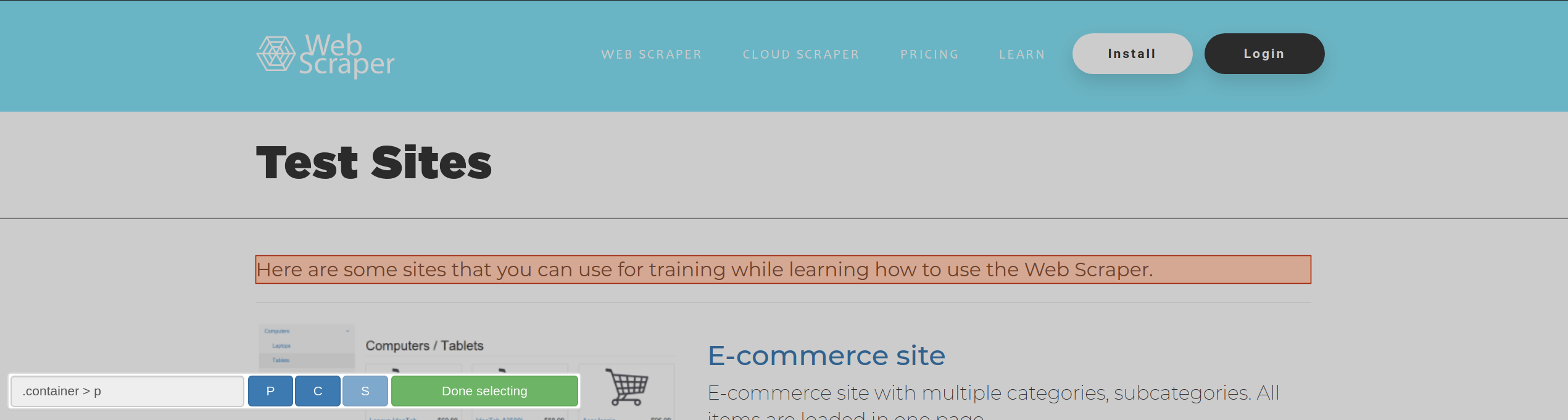
The selection tool highlights the current candidate element and elements already included in the generated selector. Select an included element again to remove it while the tool is active.
Keyboard controls
P: move the selection to a parent element.C: return to a child element after moving to a parent.S: select the highlighted element without triggering its click action.Shift: include additional element groups where supported by the selection interface.
Enter a selector manually
Use a manual CSS selector when the generated selector is unstable, overly specific or fails to include the intended records. Prefer selectors based on stable semantic classes, attributes or structure rather than generated class names.
Validate the selector
- It matches all intended elements.
- It does not match navigation, adverts or unrelated components.
- It continues to work after opening another representative page.
- It produces the expected number of output records.