Notifications
Configure notification channels
Each notification type can independently enable or disable Email and Cloud notifications.
| Notification type | Cloud | |
|---|---|---|
| All credits have been spent | Once per day | Once per day |
| Scraping job fails | Once every 6 hours per sitemap | Unlimited |
| Data quality fails for a scraping job | Once every 6 hours per sitemap | Unlimited |
| API misuse noticed | Once every 6 hours | Unlimited |
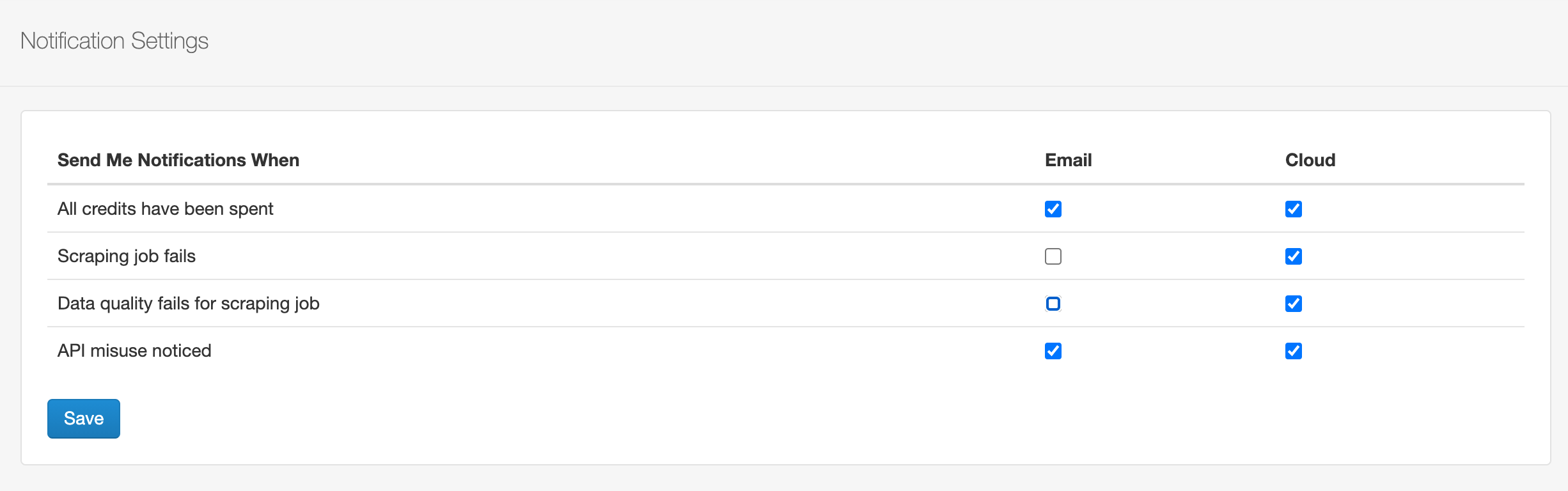
Email rate limits mean that the number of emails received is not a count of all failed jobs or events. Use Cloud jobs and notifications for the complete operational view.
What each notification means
- All credits have been spent: the account has exhausted its available page credits.
- Scraping job fails: a job did not complete successfully. Open the job to inspect Failed pages, reasons and screenshots when available.
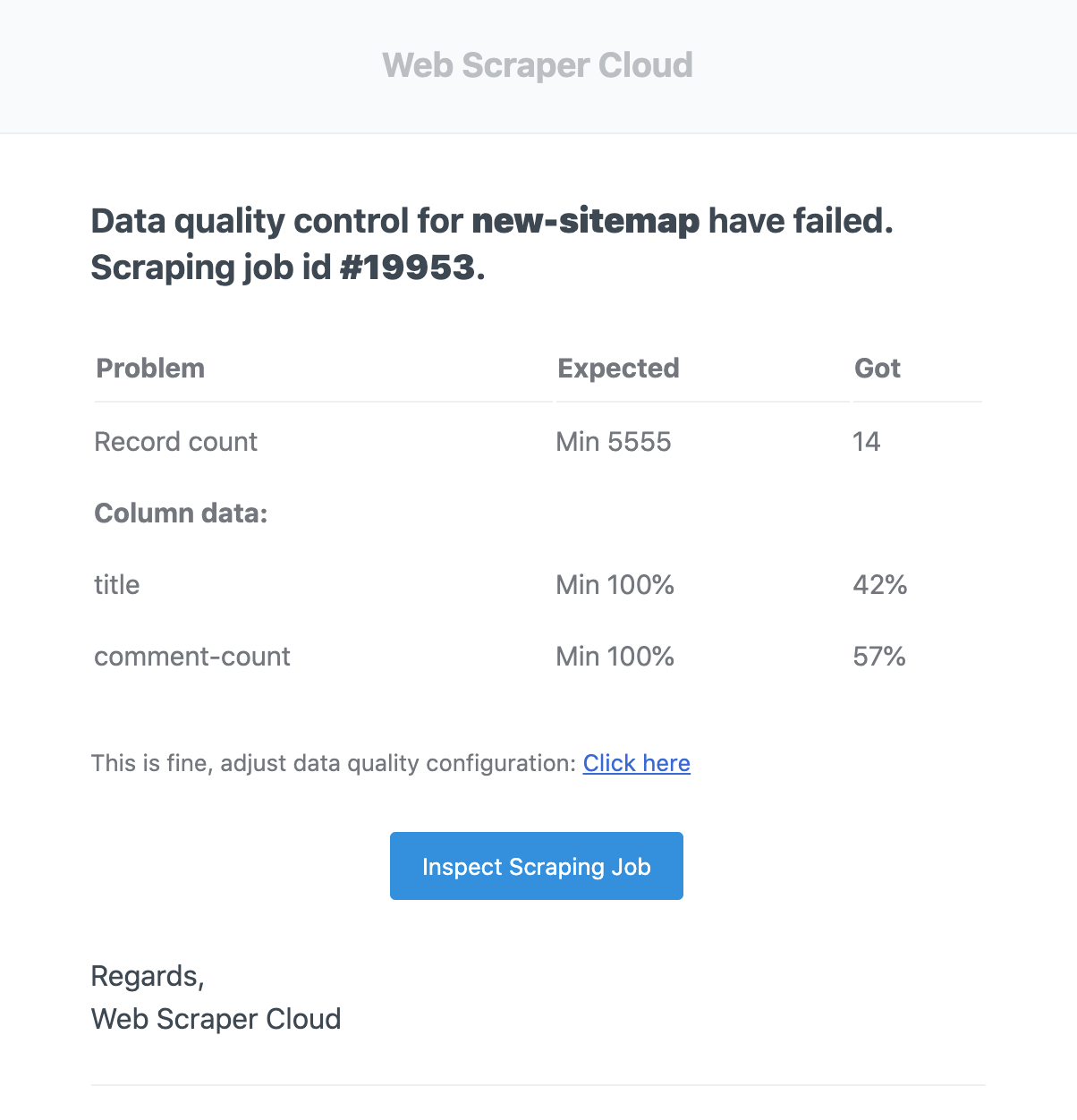
- Data quality fails for a scraping job: the job completed but one or more configured quality thresholds were not met. This does not mean the scraping job itself failed.
- API misuse noticed: Cloud detected API usage that should be reviewed.
Cloud notifications
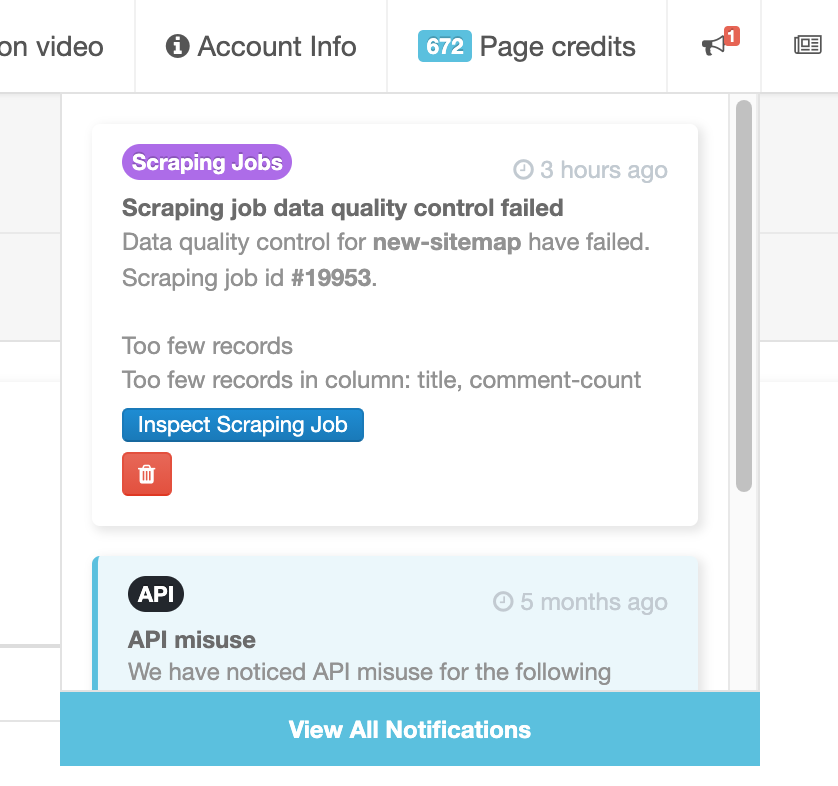
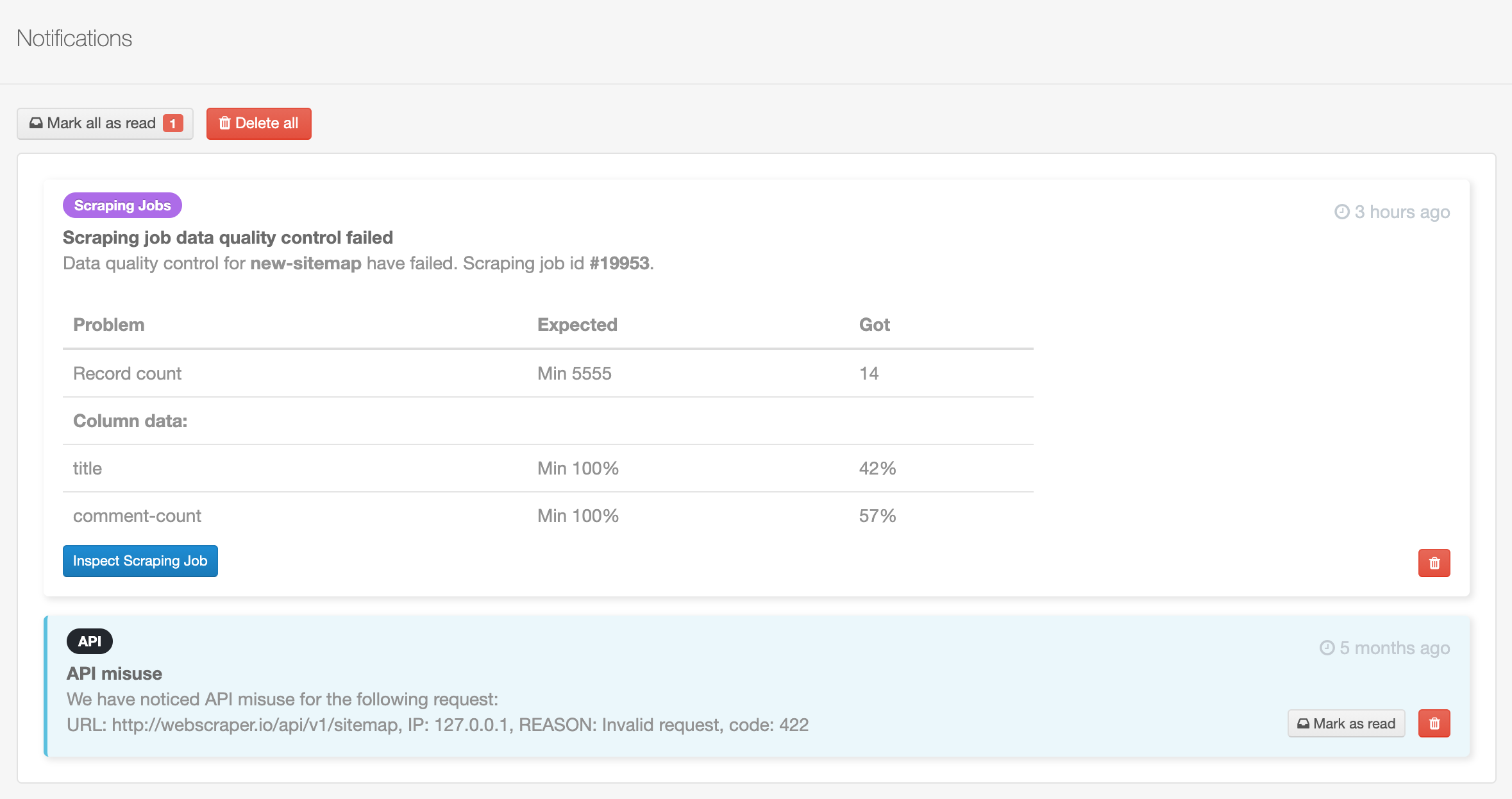
Recent notifications appear in the Cloud notification popup and the full notifications list. A notification can include the sitemap or job, creation time, a problem summary and a direct action to inspect the related job.
Investigate a scraping notification
- Open the related scraping job.
- Compare Records, Failed pages, Empty pages and No value pages with a normal run.
- Open the linked Failed, Empty or No value count when applicable.
- Inspect affected URLs, reasons and screenshots.
- Compare the returned page with the sitemap and Data quality configuration.
For unattended scheduled scraping, job-failure, Data quality and URL-credit notifications cover different failure modes and are useful together.